Music that comes with you
Search a song or paste a link, and it keeps playing while you move around Kaisuki. How the player works on a computer and on a phone, and how friends listen along.
 Kaisuki Team2 min read
Kaisuki has a music player. Find a song, press play, and keep talking. It keeps going when you switch servers, open a DM or check your notifications.
Finding a song
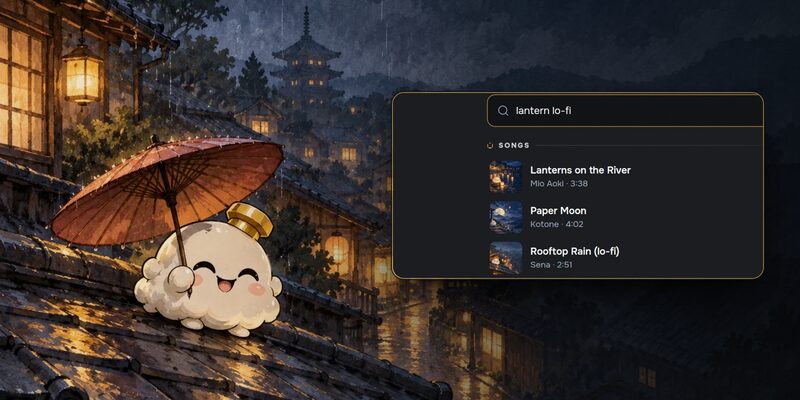
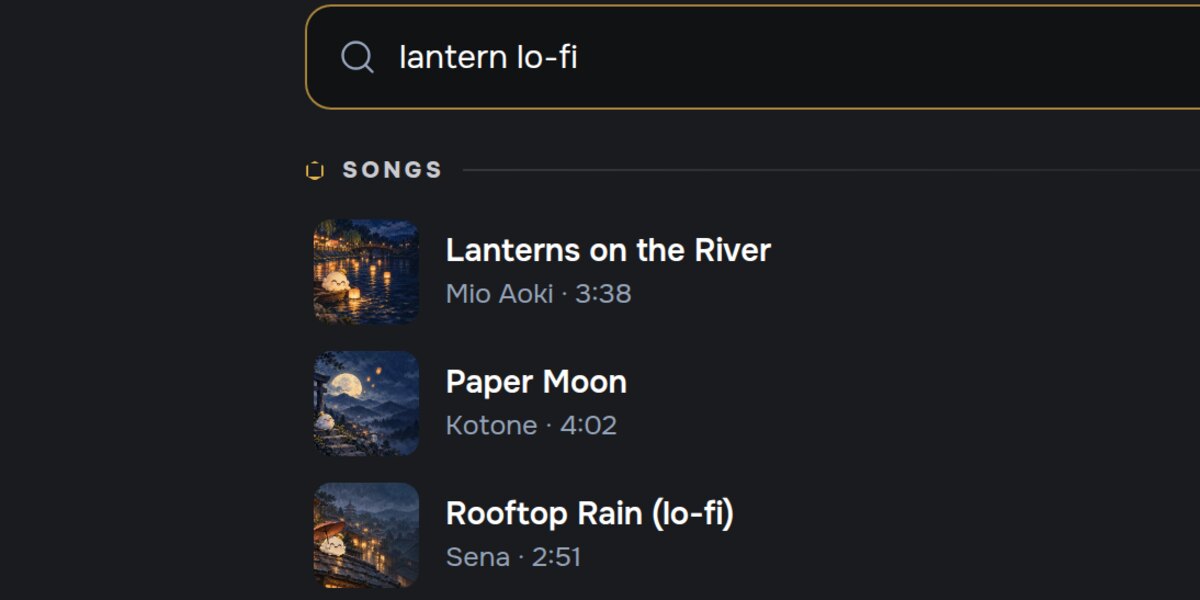
Open Music from the ♫ button in the top bar. On a phone it's also in your account menu. Search for a song, or paste a YouTube link.
Tap a song to play it. Tap + to add it to Up next.
On a computer
The player is a small window you can drag anywhere on the screen, and it remembers where you left it. Keep it compact when you only want the video, or open it up for the controls and Up next. It stays under the top bar and out of the way of menus.
On a phone
The player sits in a slim strip above the tab bar, and under the message box when you're in a chat, so it never covers what you're reading. Tuck it away with the chevron, or shrink it to a mini player and drag it wherever suits you.
Hiding the player
YouTube asks that its player stays on screen while it plays, so hiding the player pauses the song.
Nothing gets lost. While something is queued, the ♫ button in the top bar turns into gold bars, and your account card has a Now playing row with play, pause and show player.
Listen along
While you're playing something, your friends and the people in your servers see Listening to on your profile card, with a Listen along button that plays the same song in their own player.
Two people, two players, one song.
If you'd rather keep it to yourself, turn off Show what I'm listening to in Settings › Connections. It's hidden whenever you're set to Invisible anyway.
Sharing a song
Every song has Share to chat. Send it to any channel or DM, and anyone there can play it.